| Bookmark Name | Actions |
|---|
Manage Permissions
Use the feature to create and manage user roles of the application. Each user role comes with a set of user permissions. For a particular role, user permission governs the set of customer roles a user has access to and a set of system permissions which govern the various activities a user can perform on the Spotlight application. The users who do not have access to a customer role will be able to view only selected information about those customers which excludes the personally identifiable information of a customer. This will help to restrict user access to the customer. We can also define CSR permissions which define what user can perform when he tries to access customer account on behalf of a customer the user has access to. All services exposed to client are governed by a set of permissions identified as a subset of customer entitlements and user CSR permissions. The resulting permissions decide whether a user can access a particular service or not.
The navigation menu and the various options on the screen are modified based on the permissions available for a user.
Permissions broadly fall under these categories:
- Create
- View
- Modify or Update - This includes the option to deactivate and delete.
Use the feature to manage permissions.
Menu path: Employee Management > Permissions
The app displays a list of permissions. You can do the following:
- View the list of permissions
- View details of a permission
- Edit permission details
- Search for permission
- Change the permission status (activate or deactivate)
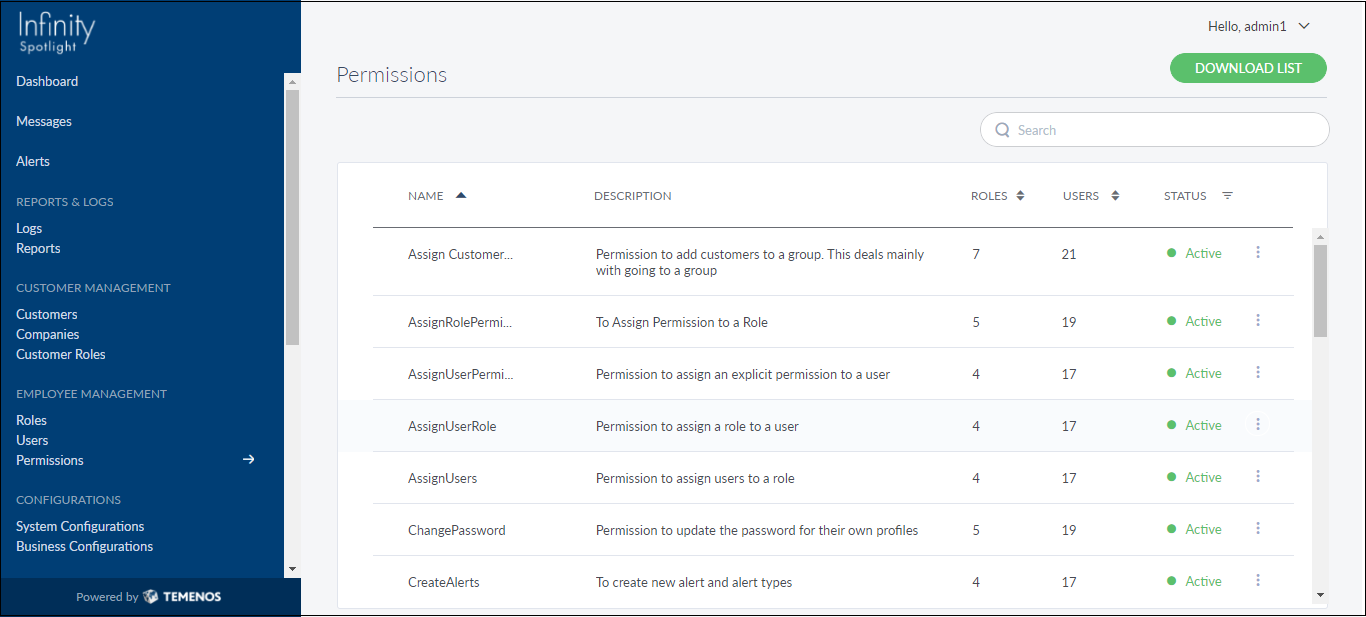
 See the list of permissions per module associated with roles.
All the details within each tab are displayed, including groups and entitlements and any other information the role otherwise doesn't have access to.
| Permissions | Associated Module | Description | Super Admin | Front Line Staff | Manager | Operations | Business | Comments |
|---|---|---|---|---|---|---|---|---|
| ViewDashboard | Dashboard | Permission to view the dashboard relevant to the user's role. In 4.0, all users see the same dashboard | Yes | Yes | Yes | Yes | Yes |
|
| ViewUser | Employee Management | Permission View and Search for Internal Users | Yes | Yes | Yes | Yes | Yes | Changed from ViewMember |
| UpdateMember | Member Management | Permission to search for any member and update their details | Yes | Yes | Yes | No | Yes | |
| CreateGroup | Member Management | Permission to create a new Member Group | Yes | No | No | Yes | Yes |
|
| ViewGroup | Member Management | Permission to view the list and details of Member Groups | Yes | No | No | Yes | Yes |
|
| ModifyGroupStatus | Member Management | Permission to change the Active status of a Group | Yes | No | No | Yes | Yes |
|
| AssignMemberGroup | Member Management | Permission to add members to a group. This deals mainly with going to a group, looking up single or multiple members and adding them to the group. Not from the Member's profile page | Yes | No | No | Yes | Yes | Front line staff can only add customers to specific groups from the Access Customers Page. Post MVP release, we can consider having Maker-Checker setup for these things in 4.1 or later |
| UpdateMemberGroup | Member Management | Permission to update a member's group (add and remove) from the member's details page | Yes | No | Yes | Yes | Yes |
|
| ViewMember | Member Management | Permission to search for a member and view his details | Yes | Yes | Yes | Yes | Yes |
|
| UpdateMemberContact | Member Management | Permission to update a selected member's contact details | Yes | Yes | Yes | No | Yes |
|
| UpdateMemberEntitlements | Member Management | Permission to add new entitlements for a selected member | Yes | No | Yes | Yes | No |
|
| CreateUpdateGroupEntitlements | Member Management | Permission to assign a service to a group | Yes | No | No | Yes | Yes |
|
| ViewRoles | Employee Management | Permission to view the list of roles and their details | Yes | No | No | Yes | Yes |
|
| CreateRoles | Employee Management | Permission to create a new Role | Yes | No | No | No | Yes |
|
| UpdateRoles | Employee Management | Permission to change the users and permissions assigned to a role, change the role description | Yes | No | No | No | No | This is on the Roles section |
| ModifyRoleStatus | Employee Management | Permission to change the Active status of a Role | Yes | No | No | Yes | No |
|
| ViewPermissions | Employee Management | Permission to view the list of permissions | Yes | No | No | Yes | Yes |
|
| CreatePermission | Employee Management | Permission to create a new Permission | Yes | No | No | No | No |
|
| UpdatePermission | Employee Management | Permission to update an existing permission, assign it to a new role or user | Yes | No | No | No | No | This is from the Permissions section |
| ModifyPermissionStatus | Employee Management | Permission to change the Active status of a Permission | Yes | No | No | Yes | Yes |
|
| CreateUser | Employee Management | Permission to create a new internal user | Yes | No | No | No | Yes |
|
| AssignUsers | Employee Management | Permission to assign users to a role | Yes | No | No | No | No | This is from the role's page - assigning users to a role |
| AssignUserRole | Employee Management | Permission to assign a role to a user | Yes | No | No | No | No | This is for an individual user and the option to assign a role to him |
| AssignUserPermission | Employee Management | Permission to assign an explicit permission to a user | Yes | No | No | No | No | This is for an individual user |
| ModifyUserStatus | Employee Management | Permission to change the Active status of a user | Yes | No | No | No | Yes |
|
| CreateService | Master Data Management | Permission to create a new service | Yes | No | No | No | No |
|
| UpdateServiceDesc | Master Data Management | Permission to make changes to an existing service Description | Yes | No | No | Yes | Yes |
|
| UpdateServiceLimitsFee | Master Data Management | Permission to update the limits and fees for a service | Yes | No | No | No | Yes |
|
| ModifyServiceStatus | Master Data Management | Permission to change the active status of a service | Yes | No | No | Yes | No |
|
| CreateAppContent | Application Content Management |
Permission to create or add new content to the following sections:
|
Yes | No | No | Yes | No |
|
| UpdateAppContent | Application Content Management |
Permission to edit the content in the following sections:
|
Yes | No | No | Yes | No |
|
| ViewAppContent | Application Content Management |
Permission to view the content in the following sections:
|
Yes | Yes | Yes | Yes | Yes |
|
| ModifyAppContentStatus | Application Content Management |
Permission to change the active status of the following sections:
|
Yes | No | No | Yes | No |
|
| ViewMessages | Messages | Permission to view the Messages section (CSR Portal) and all its content | Yes | Yes | Yes | Yes | Yes |
|
| UpdateMessages | Messages | Permission to use all the actions in the messages (CSR Portal) section | Yes | Yes | Yes | Yes | Yes |
|
| CreateMessageTemplate | Messages | Permission to create a new Message Template | Yes | No | Yes | Yes | Yes |
|
| UpdateMessageTemplate | Messages | Permission to Edit and Delete the message template | Yes | No | Yes | Yes | Yes |
|
| ChangePassword | Employee Management | Permission to update the password for their own profiles | Yes | Yes | Yes | Yes | Yes |
|
| UpdateUser | Employee Management | To Edit Internal User details | Yes | No | No | Yes | Yes |
|
| CreateMember | Member Management | To Create a new member - by uploading/importing CSV | Yes | No | No | No | No |
|
| AssignRolePermissions | Employee Management | To Assign Permission to a Role, Create Relation b/w role & permission | Yes | No | No | No | Yes |
|
| UpdateGroup | Member Management | To edit group details like name, description and status | Yes | No | No | Yes | Yes |
|
| ViewEntitlement | Member Management | To view list of Services | Yes | Yes | Yes | Yes | Yes | no UI for this yet |
| ViewDashboard | Dashboard | To view the dashboard. If yes, this should be the default landing page for the user | Yes | Yes | Yes | Yes | Yes |
|
| ViewAlerts | Alerts | To view the alerts and alert types available in the system | Yes | Yes | Yes | Yes | Yes |
|
| UpdateAlerts | Alerts | To edit alerts and alert types name, description, status, etc | Yes | No | No | Yes | Yes |
|
| CreateAlerts | Alerts | To create new alert and alert types | Yes | No | No | No | No |
|
| ViewLogs | Reports & Logs | To view all the logs available in the audit logs module of Spotlight. If a user has this permission, he can also save log views. This Permission takes precedence over other log related permissions. | Yes | Yes | Yes | Yes | Yes |
|
| ViewCustomerActivityLogs | Reports & Logs | To view only the Customer Activity Logs | Yes | Yes | Yes | Yes | Yes |
|
| ViewTransactionLogs | Reports & Logs | To view only the Transaction Logs | Yes | Yes | Yes | Yes | Yes |
|
| ViewAdminLogs | Reports & Logs | To view only the Admin user activity Logs | Yes | No | Yes | Yes | Yes |
|
| ViewReports | Reports & Logs | To view all the reports available in the reports module of Spotlight. This Permission takes precedence over other reports related permissions. | Yes | No | Yes | Yes | Yes |
|
| ViewUserReports | Reports & Logs | To view user related reports | Yes | No | No | Yes | Yes |
|
| ViewTransactionReports | Reports & Logs | To view Transaction reports | Yes | No | No | Yes | Yes |
|
| ViewMessageReports | Reports & Logs | To view Messages Reports | Yes | No | Yes | Yes | Yes |
|
| CreateNewMessage | Messages | To create a new message thread. This permission does not affect the capability to reply to a message. It specifically refers the option to create a new message by clicking on the "Create New Message Button" | Yes | No | Yes | No | Yes |
|
| CSRAssist | Member Management | To use the CSR Assist functionality for a selected customer/member | Yes | No | Yes | No | Yes |
|
View Permissions List
The app displays the list of permissions available in the application.
Menu path: Employee Management > Permissions
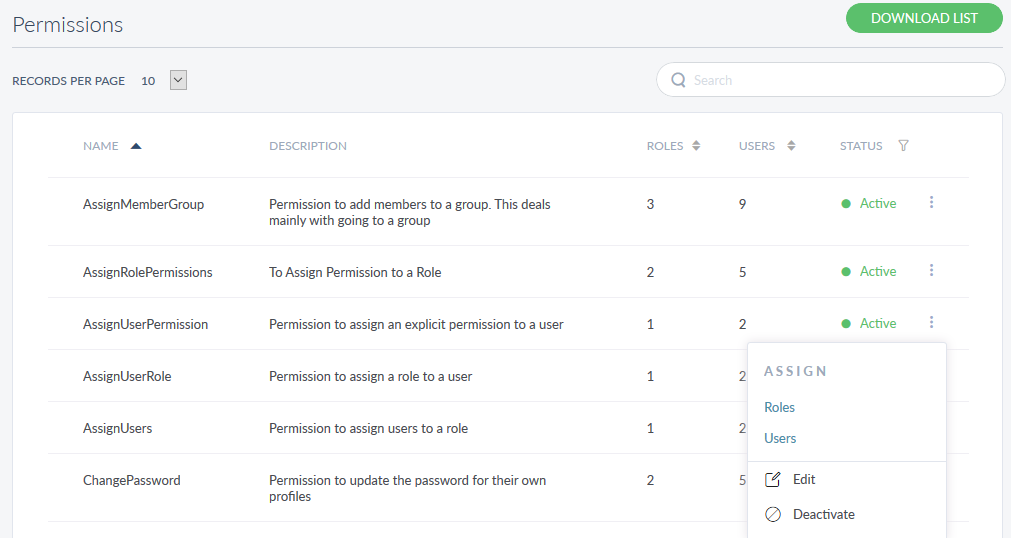
The permissions list is represented as rows with the following details: name, description, number of roles it is assigned to, total number of users it is assigned (through Customer Roles module and Permissions module), and status.
You can sort the list by any of the column names except description and status using the sort  icon (
 denotes sorted by that column). It is possible to filter the list by the status of the permissions.
Pagination is available and you navigate to any required page by choosing from the list. You can also choose the number of records that should be displayed on a page (for example, 10, 50, or 100).
You can do the following:
- Click a record to view the permission details.
- Click Download List to download the list of all existing permissions as an excel file.
- Click the contextual
 menu available on each row to open and do the following. Click again to close the menu:
- Assign roles and assign active users to the permission.
- Edit the permission details.
- Update the permission status based on the current status.
- Search for permission using the search option and search criteria.
View Permission Details
Use the feature to view the details of the selected permission and edit the details if required.
Menu path: Employee Management > Permission > Click a row
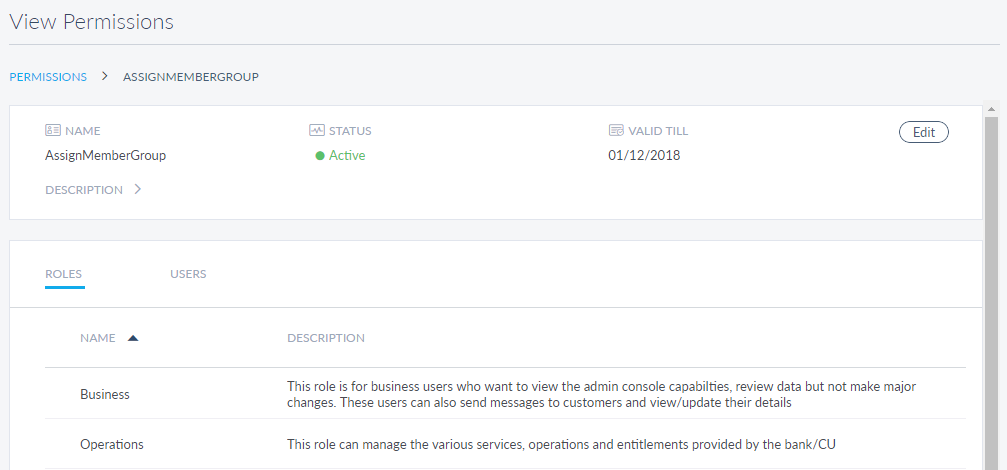
The app displays the following details on the View Permission screen:
- Permission name
- Status: It can be active or inactive
- Valid till date
- Permission description
- Edit the details
- Roles associated with the permission (for example, Manager) on the Roles tab with role name and description. Sort the name using the sort icon (denotes sorted by that column).
- Users assigned to the permission on the Users tab with full name, user name, email ID, updated by, and updated on date and time. The list displays the users that are assigned through the Permissions module. Sort the details by the column name using the sort icon ( denotes sorted by that column).
Edit a Permission
Use the feature to edit a permission, and optionally associate with roles and users.
Menu path: Employee Management > Permissions > View Permission screen > Edit
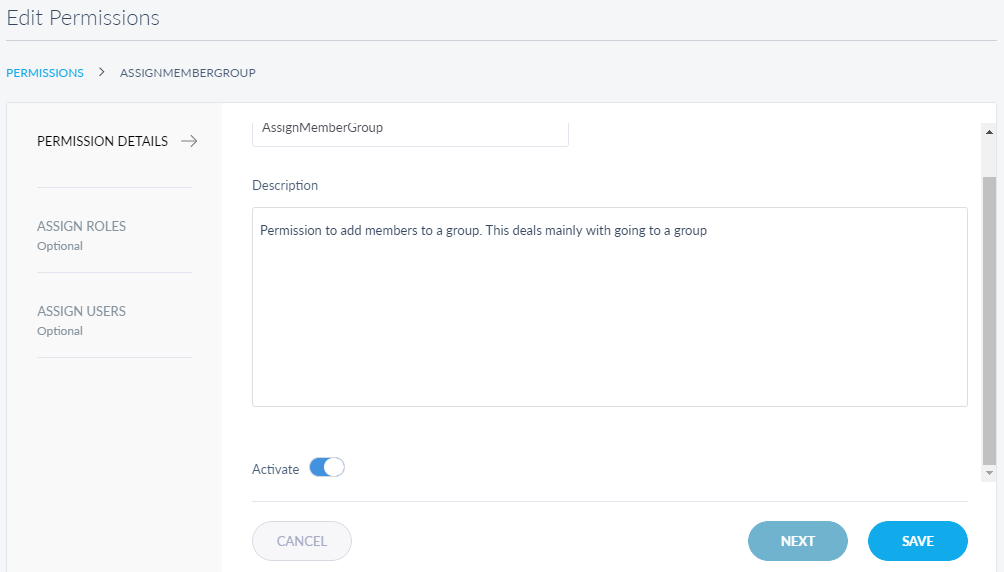
The View Permission screen comprises three tabs to edit the required information - Permission Details, Assign Roles, and Assign Users.
Permission Details
Edit the following details:
- Name of the Permission
- Description
- Activate or Deactivate
- You can proceed to associate the permission with roles by using the Next button or the Assign Roles tab (this step is optional), or save the permission details directly.
NOTE: You can cancel the process at any time. The changes are not saved.
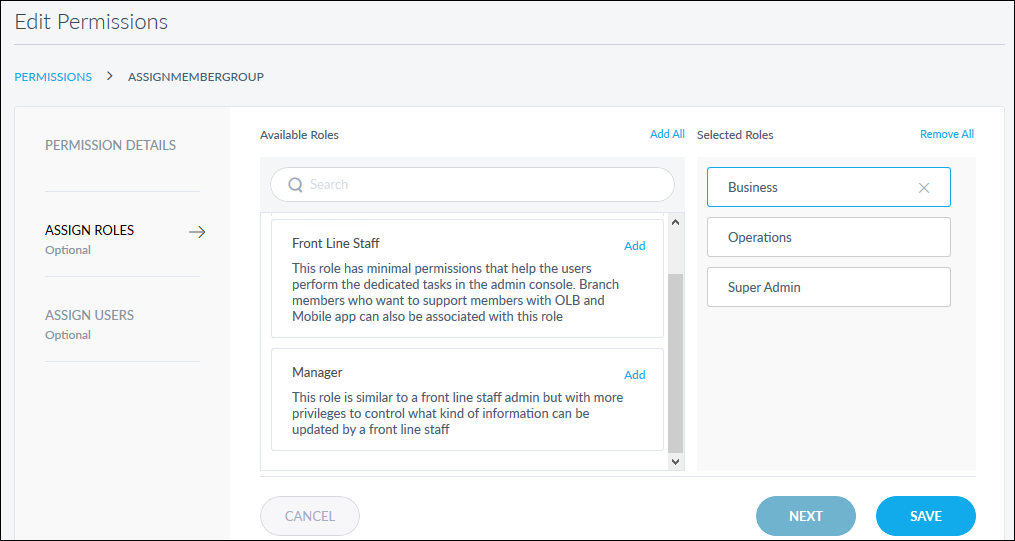
Assign Roles
The app displays the list of available roles.
- From the list of available roles, select the required roles. Use the search option to search for a particular role. You can also use the Add All option to select the entire roles list.
- The roles are added to the selected roles list.
- You can remove
 the role from the selected roles list to select another role from the available roles list. You can also use the Remove All option to remove all the selected roles.
 - You can proceed to assign users to the permission by using the Next button or the Assign Users tab (this step is optional) or save the details directly.
Assign Users
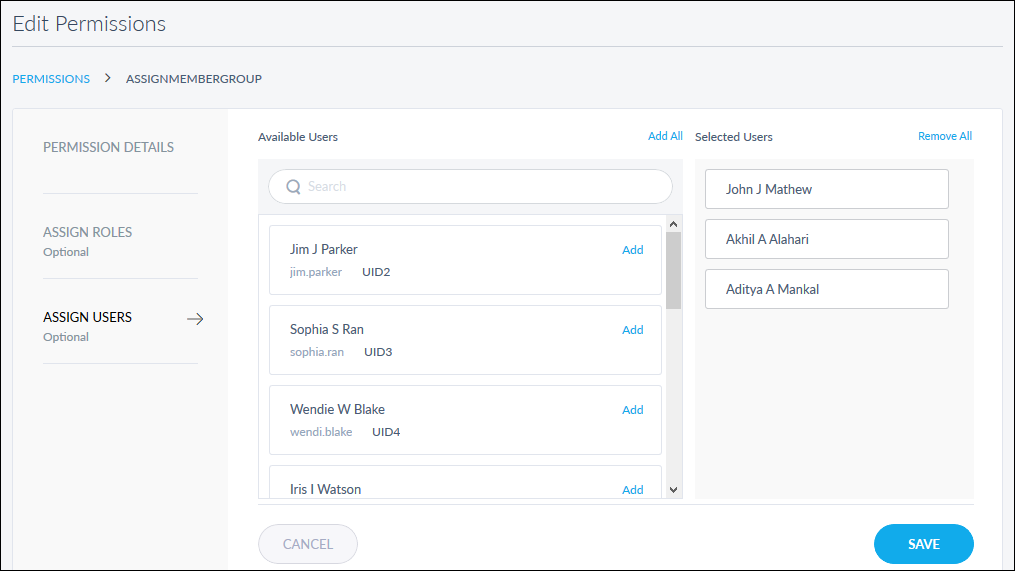
The app displays the list of active users that you can assign to the permission.
- From the list of users, select the required users. Use the search option to search for a particular user. You can also use the Add All option to select the entire user list.
- The users are added to the selected users list along with the users already assigned to the selected permission.
- You can remove the user that you assigned from the selected users list to select another user from the available users list. You can also use the Remove All option to remove all the selected users.
- Save the details.
An email notification is sent to the user about the changes.
Search Permission
Use the search option to search for a particular permission using search criteria and download the list of matching records as an excel file, if required.
Menu path: Employee Management > Permissions > Search
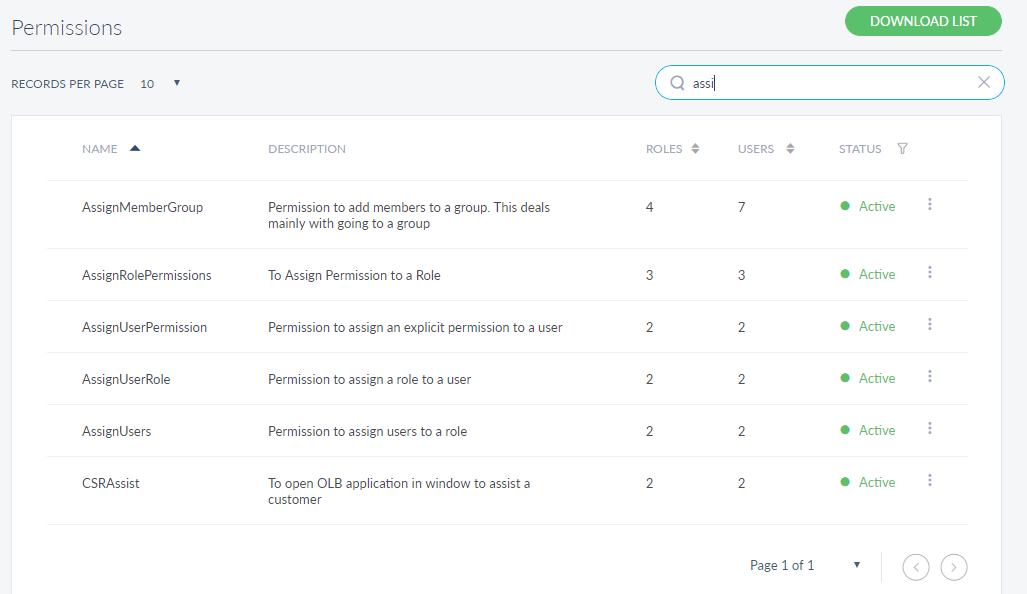
Enter the search keyword (permission name) in full or in part. The app displays the records matching the criteria automatically.
You can sort the list by Name, Roles, Users, or Status.
Click Download List to download the list of permissions matching the search criteria as an excel file, if required.
Update Permission Status
Use the feature to update the permission status.
Menu path: Employee Management > Permissions > Contextual menu
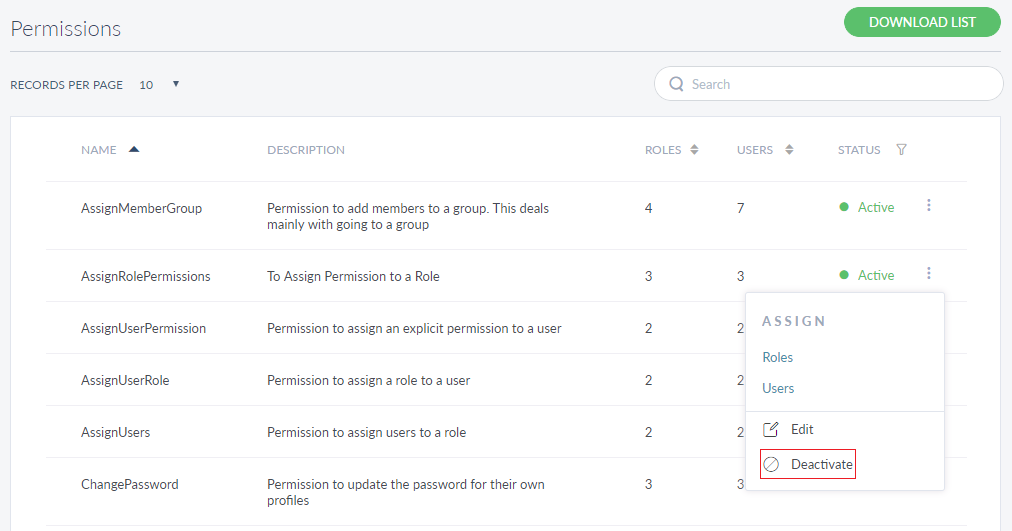
Click the contextual menu available on each row and update the status based on the current status of the permission. The following statuses are available: Activate and Deactivate. For example, if the current status of permission is Active, you can deactivate permission.
On the confirmation screen, confirm the action. The status of permission is updated as required.
Add Bookmark
save your best linksView Bookmarks
Visit your best links BACK
BACK


Are you sure you want to log-off?